Monday, November 19, 2012
The Remote Procedure Call Failed
I have a named instance of SQL Server where I had to do an edition upgrade from SQL Express to Standard edition. A while later I notice that the SQL Agent is not running. I go to SQL Server Configuration Manager to start the Agent. First I need to change the start mode to either manual or automatic. However, I get the error "The remote procedure call failed." I try changing the log on account to something else but I am still unable to start the Agent. I search and Google and finally find this little weird tip. Do this in the service mmc! Normally you do not want to make any changes to SQL Service related items there but for some strange reason that was the solution for me as well.

Wednesday, August 15, 2012
SSIS Logging with Custom Messages
SSIS Logging is a great thing. I use it in every single SSIS Package I create. I normally use the SSIS log provider for SQL Server. I am not going to explain here how to set up logging for SSIS. There are plenty of other blog posts or BOL articles about that. Here all I was going to discuss how to add your own custom messages to log.
Drag the Script task control flow item on the Control Flow area and connect it to the desired component or components. Name the script task component wisely. The name of the script task will show up in the log's source column.
Double-click the script task and specify the ReadOnlyVariables if you want to display their values as your custom message. In this example I use Microsoft Visual Basic 2008 as my script language as that is my preferred coding choice because I just can't stand the curly braces of C#. :)
Click Edit Script which will bring up the script editor. Now look at the big block of comments. The information I am providing in this log is right there!
' To fire an event, call Dts.Events.FireInformation(99, "test", "hit the help message", "", 0, True)
This is what I used in an existing SSIS package I created.
Public Sub Main()
Dts.Events.FireInformation(1, "Filename", Dts.Variables("User::SchemaRawfileLocation").Value, "", 0, False)
Dts.TaskResult = ScriptResults.Success
End Sub
Drag the Script task control flow item on the Control Flow area and connect it to the desired component or components. Name the script task component wisely. The name of the script task will show up in the log's source column.
Double-click the script task and specify the ReadOnlyVariables if you want to display their values as your custom message. In this example I use Microsoft Visual Basic 2008 as my script language as that is my preferred coding choice because I just can't stand the curly braces of C#. :)
Click Edit Script which will bring up the script editor. Now look at the big block of comments. The information I am providing in this log is right there!
' To fire an event, call Dts.Events.FireInformation(99, "test", "hit the help message", "", 0, True)
This is what I used in an existing SSIS package I created.
Public Sub Main()
Dts.Events.FireInformation(1, "Filename", Dts.Variables("User::SchemaRawfileLocation").Value, "", 0, False)
Dts.TaskResult = ScriptResults.Success
End Sub
So you can see that I created an Information event and my message is the value of the SchemaRawfileLocation variable.
On the msdn site you can look at the parameters to pass into the method. Not 100% sure on all the choices but my above example has been working.
These are the parameters:
FireInformation(informationCode as Integer, subComponent as String, description as String, helpFile as String, helpContext as Integer, byRef fireAgain as Boolean)
In my example:
informationCode: 1
subComponent: "FileName" (this does not seem to display in the SQL log though)
description: Dts.Variables("User::SchemaRawfileLocation").Value (the value of the variable, it's displayed in the message column)
helpFile: ""
helpContext: 0
fireAgain: False (no I do not want to fire this event again)
And there it is. Happy coding!
Friday, August 10, 2012
System.OutOfMemoryException in SSMS
It's quite annoying to have a query running for a while just to get this error message: System.OutOfMemoryException. I am still researching this error as while the error message seems to be quite clear, it is misleading. My local machine and the server seems to have plenty of memory so that is the deal? So far I found a few possible workarounds:
- Since only a 32-bit SSMS exists run the query on a 32-bit machine.
- Change the query results to text and not grid. When the results are displayed in grid, it uses the .net CLR which is a memory hog. Or so I read.
- Of course, the third obvious solution would be closing some other large query windows if open.
Thursday, April 26, 2012
Cannot Generate SSPI Context
Oh this cursed error! If you google it you will find tons of possible solutions that fixes this dreaded issue. In this short post I will describe what fixed the problem for me.
First a little background on previous events. One of our SQL Servers was rebuilt by creating a separate VM for it with the same name as the original after the original was taken offline.
Next day I am unable to use Windows Authentication to log into this new server. I get the Cannot Generate SSPI Contect message. I can log into the server itself and access the databases without any problem locally. I can even do that on someone else's computer, just not mine.
I play around with the setspn command line utility for a while but nothing helps.
Finally I log into the server using a SQL account. After that is successful I try the Windows login and finally, I'm in!
Such a simple solution. I hope this will help someone else too.
First a little background on previous events. One of our SQL Servers was rebuilt by creating a separate VM for it with the same name as the original after the original was taken offline.
Next day I am unable to use Windows Authentication to log into this new server. I get the Cannot Generate SSPI Contect message. I can log into the server itself and access the databases without any problem locally. I can even do that on someone else's computer, just not mine.
I play around with the setspn command line utility for a while but nothing helps.
Finally I log into the server using a SQL account. After that is successful I try the Windows login and finally, I'm in!
Such a simple solution. I hope this will help someone else too.
Wednesday, January 11, 2012
SSAS - Renaming Project /Database
At my new job I am learning about SSAS and cubes. I have created a project to practice what I have learned in my SSAS training course. Since I like to practice on something that may deem to be useful I created my first cube based on the data warehouse developed by my co-worker. While I did not name my project Hello World, I named equally silly: Testcube. At first I didn't think it's silly until I realized that this is an actual project that can be put in to use in production very easily.
So I set out to the task of renaming it. Renaming the project and the database itself was easy enough since no one was using it yet. However, after a while I noticed that the directory it creates is still called testcube. Ok, so users would never see that but I didn't want some rookie DBA or server admin come after me and delete the folder thinking it can't possibly be used.
Upon some research I realized that SSAS databases have names and IDs. At initial creation the 2 are the same. However, while I was successful at changing the name in BIDS, it did not change the ID and apparently the ID is used to name the directory. (Upon my research I also found out that SSIS also uses the ID.)
In SSMS I can see what the ID is but I can't change it. So I was looking around in BIDS. No luck. I, then looked at the files BIDS created. And so the solution was born. Do these steps AFTER you renamed everything you possibly could in BIDS.
1. Close your project if it's open.
2. Rename the .database file to the name. In my case I renamed it from testcube.database.
3. Open the .database file in Notepad and change names in the ID and Name nodes. Save.
4. Open the dwproj file in Notepad and fine the section. Change the Name and Fullpath nodes to refer to the database file in step 3.
5. Delete the SSAS database in SSMS.
6. Open the project in BIDS and redeploy. Note the Name and ID of the database.
And you are done.
In my case since the database was not used yet and it was quick to redeploy, the name and ID change didn't present other barriers. In production, this may not be such as easy matter.
So I set out to the task of renaming it. Renaming the project and the database itself was easy enough since no one was using it yet. However, after a while I noticed that the directory it creates is still called testcube. Ok, so users would never see that but I didn't want some rookie DBA or server admin come after me and delete the folder thinking it can't possibly be used.
Upon some research I realized that SSAS databases have names and IDs. At initial creation the 2 are the same. However, while I was successful at changing the name in BIDS, it did not change the ID and apparently the ID is used to name the directory. (Upon my research I also found out that SSIS also uses the ID.)
In SSMS I can see what the ID is but I can't change it. So I was looking around in BIDS. No luck. I, then looked at the files BIDS created. And so the solution was born. Do these steps AFTER you renamed everything you possibly could in BIDS.
1. Close your project if it's open.
2. Rename the .database file to the name. In my case I renamed it from testcube.database.
3. Open the .database file in Notepad and change names in the ID and Name nodes. Save.
4. Open the dwproj file in Notepad and fine the
5. Delete the SSAS database in SSMS.
6. Open the project in BIDS and redeploy. Note the Name and ID of the database.
And you are done.
In my case since the database was not used yet and it was quick to redeploy, the name and ID change didn't present other barriers. In production, this may not be such as easy matter.
Thursday, August 11, 2011
Go!
Can you guess it's a slow time for me at work? This is my third post within one week! During downtime I like to read articles to further my knowledge of SQL Server. That's when I catch up on newsletters that collected in my inbox or prepare for my upcoming certification test.
Today, I ran across Kalen Delaney's article about a curious undocumented feature of SQL Server. If you put an integer after the batch separator "go" (e.g. go 10) the sql statement(s) before the "go" will be executed that many times (in my example 10 times.)
She uses this interesting little feature to populate test tables with test data but it can be used as a quick and dirty stress/concurrency testing technique as well.
Thank you Kalen for documenting the undocumented!
Today, I ran across Kalen Delaney's article about a curious undocumented feature of SQL Server. If you put an integer after the batch separator "go" (e.g. go 10) the sql statement(s) before the "go" will be executed that many times (in my example 10 times.)
She uses this interesting little feature to populate test tables with test data but it can be used as a quick and dirty stress/concurrency testing technique as well.
Thank you Kalen for documenting the undocumented!
Wednesday, August 10, 2011
SQL Server Data Collector Woes
This post is to list the idiosyncrasies I came across while setting up Data Collector.
Cache directory
Issue: As the name implies this is the location where the cache collects the data. When clicking on the ellipsis it opens up the drive and folder structure of the server where the management data warehouse resides. Guess what? If you specify a folder on that server you will get the following error: The system cannot find the file specified.
Solution: The folder needs to exist on the server against which the data collection is executed.
Tip: This folder seems to be used even if you set the data collection to be non-cached.
Permissions
Issue: Login failed for user error.
Solution: Make sure the user set up to run the SQL Agent Service has access to the database server where the management data warehouse resides.
QueryActivityUpload
Issue: The error "Arithmetic overflow error converting expression to data type int" during Query Statistics processing.
Solution: As per this Connect page explains Cumulative Update #5 for SQL Server 2008 SP1 will fix this problem. However, if you cannot wait to get and apply that update there is a manual workaround explained on that same page. The workaround involves modifying the QueryActivityUpload SSIS package. I went by that route and the modifying the package does work. I just want to add that There are 2 places where the fix needs to be applied: OLE DB Source in the DFT - Create Interesting Queries Last Snapshot and the ODS - Get current snapshot of dm_exec_query_stats in the DFT - Create Interesting Queries Upload Bath dataflow tasks.
Cache directory
Issue: As the name implies this is the location where the cache collects the data. When clicking on the ellipsis it opens up the drive and folder structure of the server where the management data warehouse resides. Guess what? If you specify a folder on that server you will get the following error: The system cannot find the file specified.
Solution: The folder needs to exist on the server against which the data collection is executed.
Tip: This folder seems to be used even if you set the data collection to be non-cached.
Permissions
Issue: Login failed for user error.
Solution: Make sure the user set up to run the SQL Agent Service has access to the database server where the management data warehouse resides.
QueryActivityUpload
Issue: The error "Arithmetic overflow error converting expression to data type int" during Query Statistics processing.
Solution: As per this Connect page explains Cumulative Update #5 for SQL Server 2008 SP1 will fix this problem. However, if you cannot wait to get and apply that update there is a manual workaround explained on that same page. The workaround involves modifying the QueryActivityUpload SSIS package. I went by that route and the modifying the package does work. I just want to add that There are 2 places where the fix needs to be applied: OLE DB Source in the DFT - Create Interesting Queries Last Snapshot and the ODS - Get current snapshot of dm_exec_query_stats in the DFT - Create Interesting Queries Upload Bath dataflow tasks.
SQL Server Deprecated Features
I ran across this very useful performance counter today: SQLServer:Deprecated Features. This shows you how often SQL Server encountered listed deprecated features since the latest start.
In my SQL 2008 environment I see such item as "String literals as column aliases" or "sp_change_users_login." Some of these features are self-explanatory. For example, I can deduct from "Table hint without WITH" what I need to use the keyword "WITH" for table hints to correct this for a future version of SQL Server when skipping WITH will not be allowed.
For some others it's not so obvious or I need to find out another option. In those cases I can look at Microsoft's page that describes all the deprecated features in detail giving alternatives: http://technet.microsoft.com/en-us/library/bb510662.aspx. On this article, for instance, I find out that instead of DBCC DBREINDEX I need to use the REBUILD option of ALTER INDEX.
If you have a lot of legacy code in your application (and who doesn't?) be sure to take a look at this counter by running the following SQL statement: SELECT * FROM sys.dm_os_performance_counters where object_name = 'SQLServer:Deprecated Features'
In my SQL 2008 environment I see such item as "String literals as column aliases" or "sp_change_users_login." Some of these features are self-explanatory. For example, I can deduct from "Table hint without WITH" what I need to use the keyword "WITH" for table hints to correct this for a future version of SQL Server when skipping WITH will not be allowed.
For some others it's not so obvious or I need to find out another option. In those cases I can look at Microsoft's page that describes all the deprecated features in detail giving alternatives: http://technet.microsoft.com/en-us/library/bb510662.aspx. On this article, for instance, I find out that instead of DBCC DBREINDEX I need to use the REBUILD option of ALTER INDEX.
If you have a lot of legacy code in your application (and who doesn't?) be sure to take a look at this counter by running the following SQL statement: SELECT * FROM sys.dm_os_performance_counters where object_name = 'SQLServer:Deprecated Features'
Monday, July 25, 2011
Unexpected error from external database driver
I'm working on an SSIS package today. Nothing really special. Just looping through some Excel files and processing the content. I was unable to set up the Excel Source component because whenever I wanted to select the sheet name (with or without using a variable) I received the following error: Unexpected error from external database driver (22)
Nice! What is causing this? It turned out that the name of the sheet was 31 characters long. I removed the last character, saved the spread sheet and voila! the name of the sheet is in the drop down box. So it seems that while the sheet name limit in Excel is 31 characters when dealing with it in SSIS the name of the sheet cannot be longer than 30 characters because the 31 characters need to be able to include the $ sign which indicates sheet name and not a range name.
Update: this may not have been the problem. I have "fixed" the error by saving the Excel file without changing the name of the sheet. So I am back to drawing board with this error.
Now if I could just figure out the "Value does not fall within the expected range" error that I get when I am trying to view the columns on this same component.
Update: I resolved this last error by deleting my Excel Source component and recreating it.
Nice! What is causing this? It turned out that the name of the sheet was 31 characters long. I removed the last character, saved the spread sheet and voila! the name of the sheet is in the drop down box. So it seems that while the sheet name limit in Excel is 31 characters when dealing with it in SSIS the name of the sheet cannot be longer than 30 characters because the 31 characters need to be able to include the $ sign which indicates sheet name and not a range name.
Update: this may not have been the problem. I have "fixed" the error by saving the Excel file without changing the name of the sheet. So I am back to drawing board with this error.
Now if I could just figure out the "Value does not fall within the expected range" error that I get when I am trying to view the columns on this same component.
Update: I resolved this last error by deleting my Excel Source component and recreating it.
Wednesday, June 8, 2011
Setting up SQL Server to email you when a SQL job fails
In this post I will list all the steps needed to be completed in order to have SQL Server send email notifications when a job fails.
Step 1.
Enable Database Mail unless it has already been done. Make sure you have a profile set up. I will not go into details on this step as it's pretty straight-forward. Make sure your test email will go through though. In our case our STMP server only accepts email messages from specific servers so if I set up database mail on a new SQL Server then I will have to notify our server admin to add that server to the white list.
Step 2.
Create an Operator. This item is found under SQL Server Agent in SSMS.
This step is pretty straight-forward as well. You need to do is name the operator and specify an email address for it. At my current job we do not have a large group of database admins so I only have one operator with a distribution group email address that goes to exactly 2 people.
Step 3.
Enable mail profile for SQL Server Agent. This can be done in the Properties of SQL Server Agent, Alert System section. Check the Enable mail profile item, select Database Mail as the Mail system and select the Mail profile that was created in Step 1. In this section you may enable the a fail-safe operator as well by selecting the Operator you created in Step 2.
Step 4.
Restart SQL Server Agent! This bites me all the time. You do everything but this step and you wonder why it does not work. Because you forgot to restart the Agent!
Step 5.
Edit the properties of the SQL Job for which you want to set up email notifications. In the Notifications section check E-mail and specify the Operator you set up in Step 2. You obviously want the notification to be sent out when the job fails. However, in some unique scenarios you also want notifications when the succeeds or simply just completes. I usually also check the Write to the Windows Application event log as well. Emails can get deleted. You need to make of an effort to get rid of an event log. Save the SQL Job and you are done!
Step 1.
Enable Database Mail unless it has already been done. Make sure you have a profile set up. I will not go into details on this step as it's pretty straight-forward. Make sure your test email will go through though. In our case our STMP server only accepts email messages from specific servers so if I set up database mail on a new SQL Server then I will have to notify our server admin to add that server to the white list.
Step 2.
Create an Operator. This item is found under SQL Server Agent in SSMS.
This step is pretty straight-forward as well. You need to do is name the operator and specify an email address for it. At my current job we do not have a large group of database admins so I only have one operator with a distribution group email address that goes to exactly 2 people.
Step 3.
Enable mail profile for SQL Server Agent. This can be done in the Properties of SQL Server Agent, Alert System section. Check the Enable mail profile item, select Database Mail as the Mail system and select the Mail profile that was created in Step 1. In this section you may enable the a fail-safe operator as well by selecting the Operator you created in Step 2.
Step 4.
Restart SQL Server Agent! This bites me all the time. You do everything but this step and you wonder why it does not work. Because you forgot to restart the Agent!
Step 5.
Edit the properties of the SQL Job for which you want to set up email notifications. In the Notifications section check E-mail and specify the Operator you set up in Step 2. You obviously want the notification to be sent out when the job fails. However, in some unique scenarios you also want notifications when the succeeds or simply just completes. I usually also check the Write to the Windows Application event log as well. Emails can get deleted. You need to make of an effort to get rid of an event log. Save the SQL Job and you are done!
Friday, February 4, 2011
Dundas and SSRS 2008 R2
I am in the process of upgrading our SQL Server Reporting Services 2008 to R2. One of the issues that I ran into is that in about half of our reports we use Dundas controls and the Dundas controls does not show up on the reports in SSRS 2008 R2. In the event viewer the following error is logged: Report Server (MSSQLSERVER) cannot load the DundasChartControl extension.
I am doing a side by side upgrade. That means that I have a brand new instance of SQL Server 2008 R2. Unfortunately I found poor documentation on how the upgrade would affect the Dundas controls. Microsoft does have one page dedicated to the upgrade process and how it affects custom controls but it's not very useful: http://technet.microsoft.com/en-us/library/ms143674.aspx.
With some trial and error I finally found the solution.
Copy over the Dundas Dlls (DundasRSChart.dll,etc) to the ReportServer's bin folder. E.g.C:\Program Files\Microsoft SQL Server\MSRS10_50.MSSQLSERVER\Reporting Services\ReportServer\bin
Make sure you have this item in the rsreportserver.config file within the Extension tag:
<ReportItems>
<ReportItem Name="DundasChartControl" Type="Dundas.ReportingServices.DundasChart,DundasRSChart" />
<ReportItem Name="DundasMapControl" Type="Dundas.ReportingServices.Maps.DundasMap,DundasRSMap" />
<ReportItem Name="DundasGaugeControl" Type="Dundas.ReportingServices.DundasGauge,DundasRSGauge" />
<ReportItem Name="DundasCalendarControl" Type="Dundas.ReportingServices.Calendar.DundasCalendar,DundasRSCalendar" /> </ReportItems>
In the ReportServer's rssrvpolicy.config, make sure this exists inside this tag:
<CodeGroup class="FirstMatchCodeGroup" version="1" PermissionSetName="Execution"
Description="This code group grants MyComputer code Execution permission. ">
<CodeGroup class="UnionCodeGroup" version="1" PermissionSetName="FullTrust" Name="DundasChartControl" Description="This code group grants FullTrust to DundasChartControl assemblies.">
<IMembershipCondition class="StrongNameMembershipCondition" version="1" PublicKeyBlob="0024000004800000940000000602000000240000525341310004000001000100d16006505277d0860ce7d429331480cb3b9711481cd51213259cf3b106e30156f5ef48262e0154e862fa05374e6c7cef5c4daa95b2272a73e503f0e5077c6b71a24176e67eadbff8e8765742f022e317194571de05d0ac9a4fca62fd355854ebe5a38969a831030018edad7d7405dd23d0710c9faf95acf16a4a14003bada5be" />
</CodeGroup>
After this restart the reporting services service and the Dundas controls should show up on the reports.
I am doing a side by side upgrade. That means that I have a brand new instance of SQL Server 2008 R2. Unfortunately I found poor documentation on how the upgrade would affect the Dundas controls. Microsoft does have one page dedicated to the upgrade process and how it affects custom controls but it's not very useful: http://technet.microsoft.com/en-us/library/ms143674.aspx.
With some trial and error I finally found the solution.
Copy over the Dundas Dlls (DundasRSChart.dll,etc) to the ReportServer's bin folder. E.g.C:\Program Files\Microsoft SQL Server\MSRS10_50.MSSQLSERVER\Reporting Services\ReportServer\bin
Make sure you have this item in the rsreportserver.config file within the Extension tag:
<ReportItems>
<ReportItem Name="DundasChartControl" Type="Dundas.ReportingServices.DundasChart,DundasRSChart" />
<ReportItem Name="DundasMapControl" Type="Dundas.ReportingServices.Maps.DundasMap,DundasRSMap" />
<ReportItem Name="DundasGaugeControl" Type="Dundas.ReportingServices.DundasGauge,DundasRSGauge" />
<ReportItem Name="DundasCalendarControl" Type="Dundas.ReportingServices.Calendar.DundasCalendar,DundasRSCalendar" /> </ReportItems>
In the ReportServer's rssrvpolicy.config, make sure this exists inside this tag:
<CodeGroup class="FirstMatchCodeGroup" version="1" PermissionSetName="Execution"
Description="This code group grants MyComputer code Execution permission. ">
<CodeGroup class="UnionCodeGroup" version="1" PermissionSetName="FullTrust" Name="DundasChartControl" Description="This code group grants FullTrust to DundasChartControl assemblies.">
<IMembershipCondition class="StrongNameMembershipCondition" version="1" PublicKeyBlob="0024000004800000940000000602000000240000525341310004000001000100d16006505277d0860ce7d429331480cb3b9711481cd51213259cf3b106e30156f5ef48262e0154e862fa05374e6c7cef5c4daa95b2272a73e503f0e5077c6b71a24176e67eadbff8e8765742f022e317194571de05d0ac9a4fca62fd355854ebe5a38969a831030018edad7d7405dd23d0710c9faf95acf16a4a14003bada5be" />
</CodeGroup>
After this restart the reporting services service and the Dundas controls should show up on the reports.
Friday, January 7, 2011
SSRS 2008 R2 Bug
One of the major reasons I want to upgrade our Reporting Services to 2008 R2 is because R2 comes with PowerPivot and SSRS report can be easily imported into PowerPivot. One way to bring report data into PowerPivot is using the Export to Data Feed button on a report.
Unfortunately the upgrade process from plain vanilla SQL 2008 to R2 have a bug that somehow excluded that rendering format and that option is missing from the reports.
After a little searching I found the solution. The following line needs to be added in the rsreportserver.config file in the Render section:
<extension name="ATOM" type="Microsoft.ReportingServices.Rendering.DataRenderer.AtomDataReport,Microsoft.ReportingServices.DataRendering" visible="false"></extension>
Unfortunately the upgrade process from plain vanilla SQL 2008 to R2 have a bug that somehow excluded that rendering format and that option is missing from the reports.
After a little searching I found the solution. The following line needs to be added in the rsreportserver.config file in the Render section:
<extension name="ATOM" type="Microsoft.ReportingServices.Rendering.DataRenderer.AtomDataReport,Microsoft.ReportingServices.DataRendering" visible="false"></extension>
Wednesday, December 22, 2010
Server 2008 and SSRS
Sadly we do not have a development or test environment for our Reporting Server. However, I wanted to test the upgrade from SQL Server 2008 to SQL Server 2008 R2. I wanted to know how it will affect our reports, most specifically reports that use Dundas controls.
So I asked our server admin to create me a VM for testing. I installed SQL Server 2008 database engine and reporting services, however, I had trouble deploying reports to it. It's been a while since the last time I set up reporting service so I forgot that I had to assign the System Administrator role specifically within reporting services Site Settings section. The problem is that I kept getting the error "The permissions granted to user [] are insufficient for performing this operation. (rsAccessDenied) "
It turns out that the solution was to run IE as Administrator. That made the Settings page available.
Deploy still gave me the same rsAccessDenied error. The solution for that was also to run BIDS as Administrator.
Many thanks to Johan Åhlén's blog where I found the solution.
So I asked our server admin to create me a VM for testing. I installed SQL Server 2008 database engine and reporting services, however, I had trouble deploying reports to it. It's been a while since the last time I set up reporting service so I forgot that I had to assign the System Administrator role specifically within reporting services Site Settings section. The problem is that I kept getting the error "The permissions granted to user [] are insufficient for performing this operation. (rsAccessDenied) "
It turns out that the solution was to run IE as Administrator. That made the Settings page available.
Deploy still gave me the same rsAccessDenied error. The solution for that was also to run BIDS as Administrator.
Many thanks to Johan Åhlén's blog where I found the solution.
SSIS - Office 2010 Woes
Good news: I got a new laptop at work that's much faster than my previous one.
Bad news: new laptop = setup issues.
My previous laptop was 32-bit and this one is 64-bit which came with its own challenges. I have the 64-bit Office 2010 installed on it. If you have ever worked with SSIS in a 64-bit environment then you know where this post is going.
I am working on an SSIS package that import data from Excel 2007 to SQL Server. I had created the package on my previous 32-bit laptop and I have to tweak it. Now I get this error: "
The 'Microsoft.ACE.OLEDB.12.0' provider is not registered on the local machine."
I search for a solution and I come across a few things. One is to set my project to use the 32-bit runtime. Another one is to download the Microsoft Access Database Engine 2010 Redistributable which has backwards connectivity components. Another thing suggested changing the connection string to Microsoft.ACE.OLEDB.14.0.
Neither of the above solutions have worked. What eventually worked is downloading and installing the 2007 Office System Driver: Data Connectivity Components. Just for reference this is my connection string: Provider=Microsoft.ACE.OLEDB.12.0;Data Source=filename.xlsx;Extended Properties="EXCEL 12.0;HDR=YES;IMEX=2";
I hope this post will help someone facing the same problems. Merry Christmas!
Just a note: in order to install the Access Database Engine 2010 32-bit version I had to uninstall any 4-bit versions of Office.
Bad news: new laptop = setup issues.
My previous laptop was 32-bit and this one is 64-bit which came with its own challenges. I have the 64-bit Office 2010 installed on it. If you have ever worked with SSIS in a 64-bit environment then you know where this post is going.
I am working on an SSIS package that import data from Excel 2007 to SQL Server. I had created the package on my previous 32-bit laptop and I have to tweak it. Now I get this error: "
The 'Microsoft.ACE.OLEDB.12.0' provider is not registered on the local machine."
I search for a solution and I come across a few things. One is to set my project to use the 32-bit runtime. Another one is to download the Microsoft Access Database Engine 2010 Redistributable which has backwards connectivity components. Another thing suggested changing the connection string to Microsoft.ACE.OLEDB.14.0.
Neither of the above solutions have worked. What eventually worked is downloading and installing the 2007 Office System Driver: Data Connectivity Components. Just for reference this is my connection string: Provider=Microsoft.ACE.OLEDB.12.0;Data Source=filename.xlsx;Extended Properties="EXCEL 12.0;HDR=YES;IMEX=2";
I hope this post will help someone facing the same problems. Merry Christmas!
Just a note: in order to install the Access Database Engine 2010 32-bit version I had to uninstall any 4-bit versions of Office.
Thursday, October 21, 2010
Fishbowl (Firebird) ODBC Connection
My company decided to use the Fishbowl Point-of-sale system to handle bookstore activities. My project was to get transactions out of this system and imported into our SMS (Student Managment System) for which we use CampusVue.
Fishbowl's back-end is an open-source DBMS called Firebird. CampusVue is running on a SQL Server database.
As usual I decided to use SSIS to achieve this task.
The first challenge was to be able to connect to the bookstore database. Upon reviewing documentation of the Fishbowl product I was able to create an ODBC connection to it. You will need to obtain the credentials used if you are facing the same task. This particular credentials only allows reading of the data but that's all I need.
Here is the way the ODBC connection is set up for all who needs it.

Fishbowl's back-end is an open-source DBMS called Firebird. CampusVue is running on a SQL Server database.
As usual I decided to use SSIS to achieve this task.
The first challenge was to be able to connect to the bookstore database. Upon reviewing documentation of the Fishbowl product I was able to create an ODBC connection to it. You will need to obtain the credentials used if you are facing the same task. This particular credentials only allows reading of the data but that's all I need.
Here is the way the ODBC connection is set up for all who needs it.

32-bit vs 64-bit in SSIS
My recent project involved using a DSN as the connection string in SSIS. The challenge of the project was that I only had the 32-bit version of the driver to create the system DSN but the server was a 64-bit server. In Administrative tool there IS a 32-bit version of the ODBC editor so that was not a problem.
However, in order to make everything work in SSIS I had to do 2 things.
1) To debug in BIDS I had to change one of the solution properties. Under Debug set the Run64bitRuntime option to False.

2) In order to use the 32-bit runtime once the package was set to run as a SQL job in SSMS I had to check that option on the Step setup on the Execution Options tab.

After this everything was running smoothly.
However, in order to make everything work in SSIS I had to do 2 things.
1) To debug in BIDS I had to change one of the solution properties. Under Debug set the Run64bitRuntime option to False.

2) In order to use the 32-bit runtime once the package was set to run as a SQL job in SSMS I had to check that option on the Step setup on the Execution Options tab.

After this everything was running smoothly.
Wednesday, July 14, 2010
Type is Not Defined in Visual Studio 2010
I work for the University of Advancing Technology and as the name implies we (IT) ought to to be using advancing technologies. It's a little hard to do when we have so many legacy applications to maintain and expand. It took us a years just to move from VS 2003 to VS 2008 (.Net 1.1 to .Net 2.0+) However, one of my projects required using .Net 4.0 and Visual Studio 2010.
In this project I had to create a WCF service and a Windows service. To be used as testing grounds I also added aWindows Forms project to my solution as well.
My first task was to create the WCF service. To my biggest surprise that went pretty smoothly even though I had to reference a code library written in VS 2008 using .NET 3.5. To test my service, however, I wanted to use the Windows Forms project. There I added reference to that same code library I used in my WCF service. And that's where the problems began. For some reason creating an instance of an object from that code library was throwing error: Type 'myobject' is not defined. Interestingly that error only appeared when I tried to compile the project.
I tried the obvious, deleted then readded the reference, opened and closed my project, restarted Visual Studio, restarted the computer. Nothing. Same error.
Then I decided that perhaps I should look at the warnings as well. And one of the warnings game me a clue: The referenced assembly could not be resolved because it has a dependency on "system.Data.Oracleclient, Version=4.0.0.0, Culture=neutral, PublicKeyToken=b77a5c561934e089" which is not in the currently targeted framework ".NETFramework,Version=v4.0,Profile=Client". I am not using Oracle but my middle tier, the code library I am trying to reference uses the Microsoft.Practices.EnterpriseLibrary libraries. It obviously has references to the aforementioned Oracleclient.
After searching a little I found the solution. I had to have my project reference the full .Net 4.0 framework not only its client profile.
Open the project properties by right-clicking the project file then selecting Properties. On the left side click on Compile.
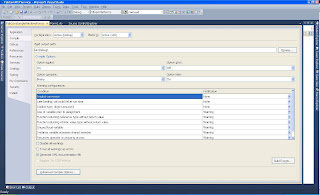 On this window click on Advanced Compile Options. On the bottom of that screen change the Target Framework to .NET Framework 4.

So it appears that WCF projects automatically use the full .NET Framework and Windows forms and Windows Services by default use the client framework only.
Good to know.
In this project I had to create a WCF service and a Windows service. To be used as testing grounds I also added aWindows Forms project to my solution as well.
My first task was to create the WCF service. To my biggest surprise that went pretty smoothly even though I had to reference a code library written in VS 2008 using .NET 3.5. To test my service, however, I wanted to use the Windows Forms project. There I added reference to that same code library I used in my WCF service. And that's where the problems began. For some reason creating an instance of an object from that code library was throwing error: Type 'myobject' is not defined. Interestingly that error only appeared when I tried to compile the project.
I tried the obvious, deleted then readded the reference, opened and closed my project, restarted Visual Studio, restarted the computer. Nothing. Same error.
Then I decided that perhaps I should look at the warnings as well. And one of the warnings game me a clue: The referenced assembly could not be resolved because it has a dependency on "system.Data.Oracleclient, Version=4.0.0.0, Culture=neutral, PublicKeyToken=b77a5c561934e089" which is not in the currently targeted framework ".NETFramework,Version=v4.0,Profile=Client". I am not using Oracle but my middle tier, the code library I am trying to reference uses the Microsoft.Practices.EnterpriseLibrary libraries. It obviously has references to the aforementioned Oracleclient.
After searching a little I found the solution. I had to have my project reference the full .Net 4.0 framework not only its client profile.
Open the project properties by right-clicking the project file then selecting Properties. On the left side click on Compile.


So it appears that WCF projects automatically use the full .NET Framework and Windows forms and Windows Services by default use the client framework only.
Good to know.
Thursday, April 29, 2010
Migrating SQL Jobs
About once a year I am faced with the fact to migrate one of our SQL Servers to a better, bigger, newer server. Usually it's not a big deal because for the most part it can be done by backing up and restoring the database. How about migrating the SQL Jobs though? Sure, that can be done as well by backing up and restoring the MSDN database but if you are also upgrading SQL Server that may not be a wise idea.
There are a few ways this can be done. SSIS has a Transfer Jobs Task but I ran into a problem with that as most of the jobs had the server specified like this: @server=N'SERVERNAME' so the task was not able to transfer those jobs. Individually scripting out SQL Jobs is possible of course if you only have a handful. In my case I had 87 SQL Jobs and frankly, I am too lazy for that much work. So I found a shortcut.
Click Jobs in Management Studio and then click F7. That will pull up Object Browser with the list of all the SQL Jobs. Highlight all and then right click and select Script Job As>Create To>New Query Window. That will script out all your jobs. Once you have them scripted out you can just a search and replace for server names or other variables you need to change. Then you change the connection to your new SQL Server, hit Execute and you are done!
In my case I was almost done. I also had some Maintenance Jobs to transfer as well. Those are basically SSIS packages kept on SQL Server as opposed to in the File System. The solution is to export them to the file system, change the connection and then import them into the new SQL Server. Here are the steps to accomplish that.
There are a few ways this can be done. SSIS has a Transfer Jobs Task but I ran into a problem with that as most of the jobs had the server specified like this: @server=N'SERVERNAME' so the task was not able to transfer those jobs. Individually scripting out SQL Jobs is possible of course if you only have a handful. In my case I had 87 SQL Jobs and frankly, I am too lazy for that much work. So I found a shortcut.
Click Jobs in Management Studio and then click F7. That will pull up Object Browser with the list of all the SQL Jobs. Highlight all and then right click and select Script Job As>Create To>New Query Window. That will script out all your jobs. Once you have them scripted out you can just a search and replace for server names or other variables you need to change. Then you change the connection to your new SQL Server, hit Execute and you are done!
In my case I was almost done. I also had some Maintenance Jobs to transfer as well. Those are basically SSIS packages kept on SQL Server as opposed to in the File System. The solution is to export them to the file system, change the connection and then import them into the new SQL Server. Here are the steps to accomplish that.
- Connect to your server's Integration Services in SSMS. You can do that by hit Connect>Integration Services. Once you are connected you will find the maintenance plan packages under Stored Packages>MSDB>Maintenance Plans.
- Export all packages. You can do that by right clicking each package then selecting Export Package. On the dialog box that box up you need to select File System in the Package location section. Then navigate to the location where you want to save your package. I left the default in the Protection level section.
- Open the packages in notepad and change the connection information. Just search for the name of the server and replace it with the name of the new server. This step is necessary because you are unable to edit the Local Server Connection in the package editor. You may also change other things as well such as backup locations and such. Save the file.
- Import the package. Connect to your new servers Integration Services. Navigate down to the location where the Maintenance Plans are located which should be the same as in the source server (see step 1.) Right click Maintenance Plans and select Import package. Select File System in the Package location then in the Package path using the ellipsis button navigate to the location where you exported your packages to. The Package name will be automatically filled in although you could change it.
- If by accident you skipped step 3, don't fret, you can still do it. You will have to repeat step 4 again and this time you will be overwriting your existing package.
- You probably want to double-check on each package to make sure there are no other adjustments need to be done. Connect to the new SQL Server's database engine this time and right-click Modify on the maintenance plans. (Management>Maintenance Plans)

Monday, April 19, 2010
Timers in Windows Services
Occasionally I have to create a windows service. In most windows services I need to create a timer to execute a certain method periodically. Since I don't work with windows services often enough I always get stumped at the best method to create the timer. I know that by dragging the Timer object from the Toolbox adds the timer from the Windows Forms namespace. That timer has a Tick even which I haven't been able to make work in a Windows Service project. So if you create a windows service in Visual Studio 2008 and you need a timer this is the code you need to add to your class for the service:
Afterwards you can set the elapse time of the timer and enable it in your service start event:
Happy coding!
Private WithEvents Timer1 As New System.Timers.Timer()

Private Sub Timer1_Elapsed(ByVal sender As System.Object, ByVal e As System.Timers.ElapsedEventArgs) Handles Timer1.Elapsed
    'Some code
End Sub
Afterwards you can set the elapse time of the timer and enable it in your service start event:
Protected Overrides Sub OnStart(ByVal args() As String)

    Timer1.Interval = 60000 '60000 = 1 minute

    Timer1.Enabled = True

End Sub
Happy coding!
Tuesday, March 2, 2010
Cannot fetch a row from OLE DB provider "BULK" for linked server
Today I come across the error "Cannot fetch a row from OLE DB provider BULK for linked server" in one of my SSIS packages. So I research this error and I find that this seems to be a catch-all error for SQL Server Destination. Therefore it's not very useful as you don't know exactly what causes it. The fix for me is changing the MaxInsertCommitSize from 0 to 99. You can find this property in the Advanced Editor for SQL Server Destination on the Component Properties tab.
Update 2-21-2011: I found another set of condition that may be causing this error. I used a SQL Server Destination but the connection manager was OLEDB. Once I changed the destination to be OLE DB Destination the error went away. The odd thing is this combo worked until I added a Lookup to my Data Flow. [insert rolling eyes here]
Update 2-21-2011: I found another set of condition that may be causing this error. I used a SQL Server Destination but the connection manager was OLEDB. Once I changed the destination to be OLE DB Destination the error went away. The odd thing is this combo worked until I added a Lookup to my Data Flow. [insert rolling eyes here]
Subscribe to:
Posts (Atom)